
Playing Switch games on your PC is fun. Sometimes games refuse to load at all. Outdated firmware is usually the main culprit here. I know the frustration of a sudden black screen. This Yuzu setup guide solves that problem fast.
Updating your Yuzu emulator fixes these common headaches. A firmware update improves performance and system stability. You also gain better compatibility with new games. Let’s get your setup running smoothly today.
Why Updating Yuzu Firmware Matters
Software goes stale just like old bread. Firmware updates keep your emulator up to date and functional, ensuring your Yuzu firmware is optimized for performance. You get important bug fixes and security patches. These updates resolve game-crashing issues almost instantly. As a result, your games run much better.
New games require updated firmware to boot properly. Older firmware lacks the right software instructions. You need the latest files for a smooth experience. Keeping things current stops errors before they start.
Essential Files for Yuzu: Prod Keys & Title Keys
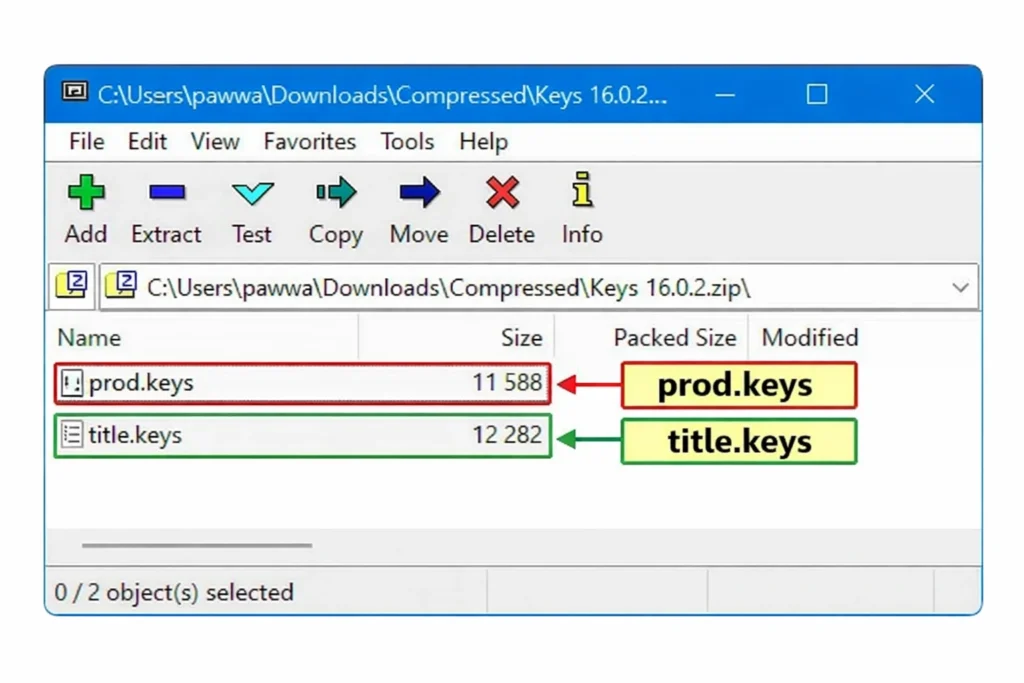
Before updating firmware, you need two vital files. These are the prod.keys and title.keys files. They act like a bouncer at a club. Your emulator cannot read games unless you check them.
The prod.keys file holds vital system encryption keys. It’s strictly required for the emulator to work. The title.keys file is completely optional for users. It helps with specific game features and files. I always install both just to be absolutely safe.
How to Set Up Prod.keys and Title.keys in Yuzu
You must configure these keys before doing anything; this setup guide ensures you don’t miss a step.
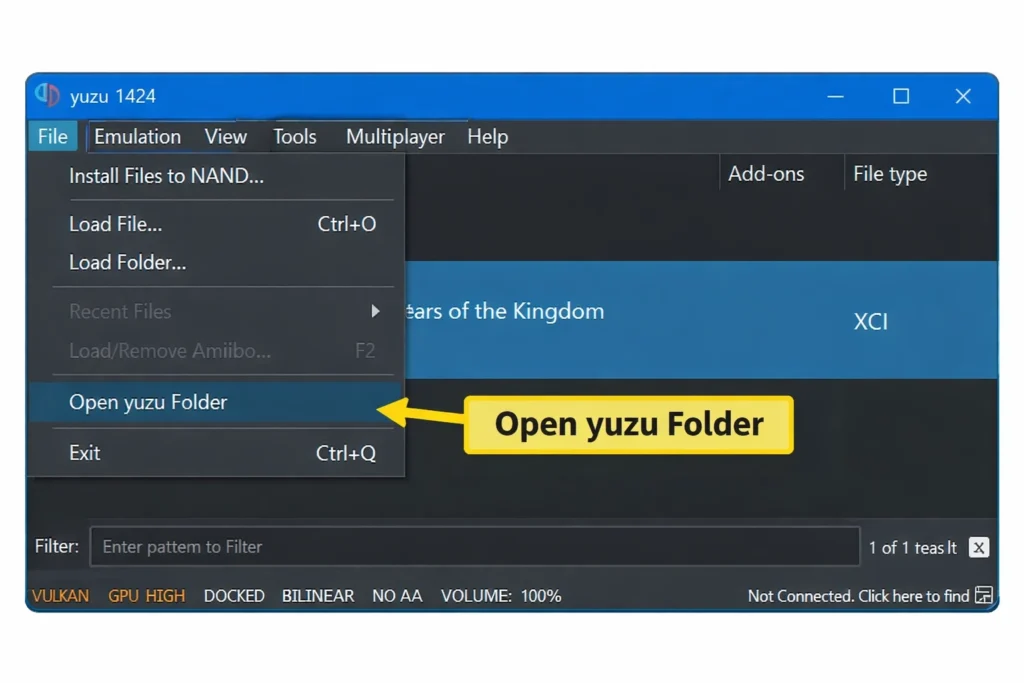
- Download your prod.keys and title.keys files securely. Open your Yuzu emulator on your computer screen. Click on “File” at the top left corner.
- Secondly, launch Yuzu and choose the option File then open the Yuzu folder. This enables you to access the main directory of the emulator.
- Now, check if there is a folder called “keys.” If you do not find it, then make one.
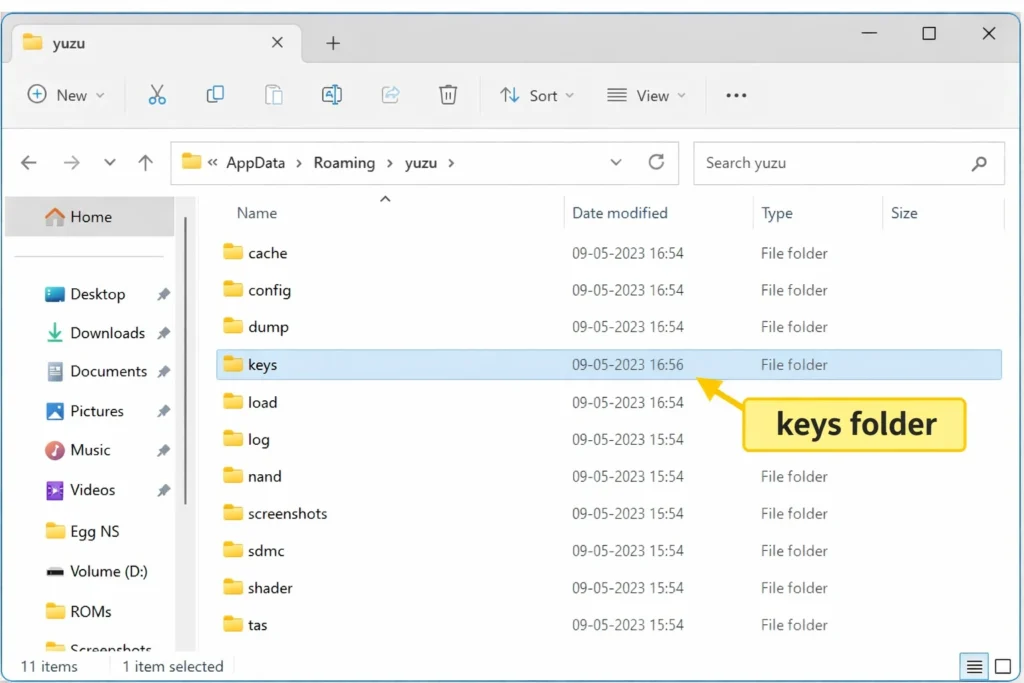
- Then, move the prod.keys and title.keys files to the “keys” folder.
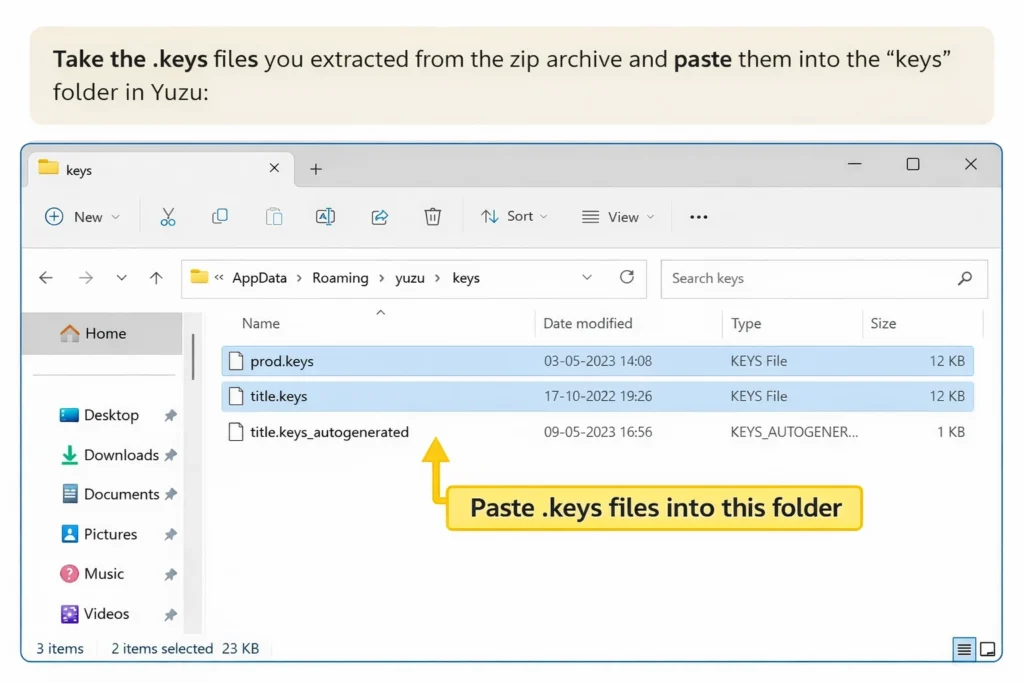
- Finally, restart Yuzu to activate the changes.
Now, Yuzu is all set to receive the firmware updates, as the keys have been installed.
How to Download & Install the Latest Firmware
Now you can focus on the firmware update. Your keys and firmware versions must match perfectly. Mismatched files cause immediate crashing errors during startup, often leading to specific Yuzu troubleshooting errors that can be resolved with proper updates. Find the latest firmware from a trusted source. Save the downloaded ZIP file to your desktop.
Treat your file directory with care during this. Incorrect folder placement breaks the entire emulator. I check my folder paths twice before pasting. This habit saves a lot of troubleshooting time.
Steps to Update Yuzu Firmware:
Extract the downloaded firmware files carefully using the software. Open the Yuzu folder through the emulator menu. You need to navigate deep into the directory. Follow this exact path: AppData/Roaming/yuzu/nand/system/contents/registered.
This specific folder holds all core firmware data. Delete any old files inside this folder first. Paste your newly extracted firmware files right here. Close the folder and restart your Yuzu emulator. You are now ready to play your favorite games.
Pro Tip: Backup Your Yuzu Files
Accidents happen when modifying core system files manually. A quick backup saves you massive future headaches. I highly recommend copying your entire Yuzu folder. Paste this copy onto a secure external drive. You can also upload it to cloud storage.
Compressing the folder into a ZIP file helps. It saves space on your primary hard drive. If an update breaks your emulator, you’re safe. Just delete the broken folder and restore it. Your game save files remain completely safe this way.
Final thoughts on your setup
Updating your firmware takes just five quick minutes. You only need to follow the steps carefully. Keeping your system updated fixes annoying bugs fast. You get better performance and wider game compatibility.
Enjoy playing your favorite titles without technical interruptions. I hope you feel confident managing your Yuzu setup now. Grab your files, update your directory, and start gaming.