
Want to play Nintendo Switch games on your PC? Yuzu makes it possible.
This Windows-compatible emulator lets you run over 100 Switch titles without owning the console. You’ll get high-quality graphics, save game functionality, and customizable gameplay settings. While Yuzu is no longer under active development, it’s still the go-to choice for PC gamers who want to experience Switch games on their setup.
Here’s everything you need to know about downloading, installing, and using the Yuzu Emulator on your PC.

Why Use Yuzu Emulator for Windows?
Yuzu Emulator lets you play Nintendo Switch games on your PC without buying the console. It offers better graphics, full controller support, and the ability to customize your gaming experience beyond what the Switch hardware allows.
Yuzu also provides excellent performance optimization, especially when you use optimized GPU drivers for smoother gameplay.
System Requirements for Yuzu Emulator
Your PC needs to meet certain specs to run Yuzu smoothly. Here’s what you’ll need.
Minimum Requirements
These specs will run Yuzu, but performance might be inconsistent:
| CPU | Intel Core i5 or AMD Ryzen 3 |
| Operating System | Windows 10 or 11 |
| RAM | 8 GB |
| Graphics | Intel HD Graphics 4400 or UHD 730 |
| GPU API | OpenGL 4.6 or Vulkan 1.1 |
| DirectX | Version 11 |
Recommended Requirements
For better performance and fewer issues, aim for these specs:
| CPU | Intel Core i5 11th Gen or AMD Ryzen 5 |
| RAM | 16 GB |
| Graphics Card | Nvidia GTX 1650, Intel Iris Xe, or Adreno 740 |
| GPU API | OpenGL 4.6 or Vulkan 1.1 |
| Operating System | Windows 10 or 11 |
Check Your PC Specs
Not sure what hardware you have? Right-click “This PC” on your desktop and select “Properties.” You’ll see your processor, RAM, and Windows version.
For your graphics card, type “Device Manager” in the Windows search bar. Expand “Display adapters” to see your GPU model.
How to Download Yuzu Emulator on PC
Getting Yuzu on your Windows PC takes a few steps. Here’s the process.
Install Microsoft Visual C++
Yuzu needs Microsoft Visual C++ to run. Download it first.
- Visit the Microsoft website
- Download the latest Visual C++ Redistributable
- Run the installer and follow the prompts
This takes about two minutes.
Download Yuzu
Now you can grab the emulator:
- Click the download button
- You’ll redirect to the download page
- Select the latest Yuzu version for Windows
- Save the zip file to your computer
The file is typically 50-100 MB. Download time depends on your internet speed.
Extract and Launch
Once downloaded:
- Find the zip file in your Downloads folder
- Right-click and select “Extract All”
- Choose a destination folder
- Open the extracted folder
- Find “yuzu.exe”
- Double-click to launch
Yuzu will open, but you can’t play games yet. There’s one more step.
Optimize your installation process to ensure smooth operation.
How to Install and Set Up Yuzu Emulator
Installing Yuzu is straightforward. Setting it up to run games requires a few extra steps.
Get Your Game Files
Yuzu can’t run games without two things:
- Game ROMs: Digital copies of Switch games
- Prod keys: Encryption keys from your Switch console
Both must be legally obtained from your own Nintendo Switch. Downloading these files from the internet violates copyright law.
For troubleshooting specific error codes, consult the compatibility lists for known issues.
To dump your own games and keys, you’ll need:
- A Nintendo Switch console
- A microSD card
- Homebrew software (like Lockpick_RCM for keys and nxdumptool for games)
This process is technical. If you’re not comfortable with homebrew, stick to playing games on your actual Switch.
Add Games to Yuzu
Once you have legal game files:
- Open Yuzu
- Click “File” in the top menu
- Select “Open Yuzu Folder”
- Create a “games” folder
- Copy your ROM files here
- Back in Yuzu, click “File” > “Load File”
- Browse to your game
- Double-click to launch
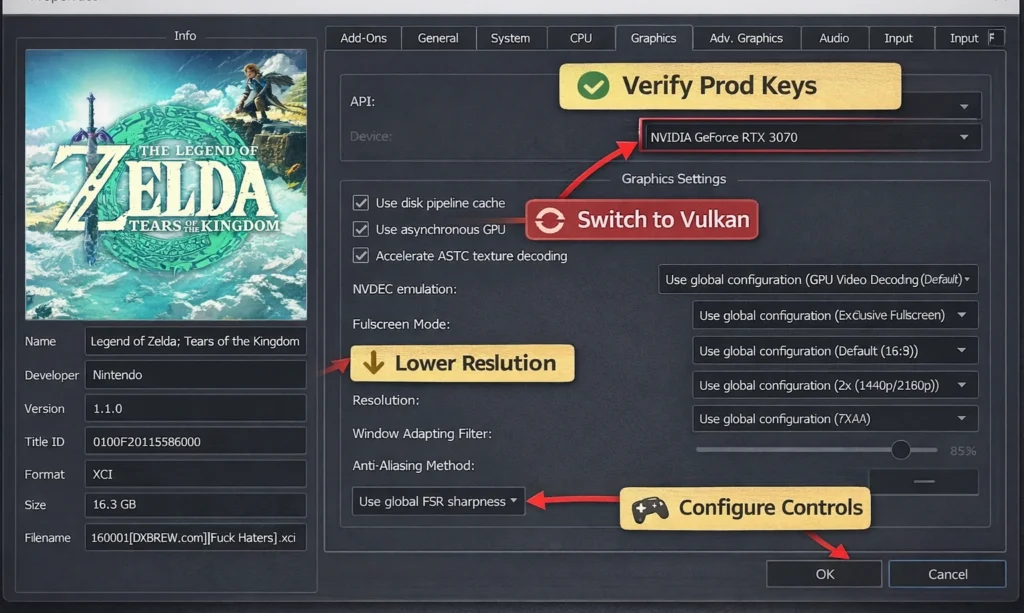
Configure Graphics Settings
For optimal performance:
- Go to “Emulation” > “Configure”
- Click the “Graphics” tab
- Set API to “Vulkan” (better performance) or “OpenGL” (better compatibility)
- Adjust the resolution scale based on your GPU
- Enable “Use disk shader cache”
Start with these settings. Adjust as needed based on game performance.
Important Legal Considerations
This part matters. Read carefully.
You Must Own the Physical Game
Downloading Switch game ROMs from the internet is illegal. Even if you own the game, downloading someone else’s copy violates copyright law.
The legal way: Dump your own cartridges using your own Switch console.
Prod Keys Must Come from Your Console
Those encryption keys need to come from your Switch. Sharing or downloading keys from others breaks the law.
Yuzu Doesn’t Provide Games or Keys
The emulator is legal software. It’s a tool. Using it with pirated content is not legal.
Why This Matters
Nintendo actively pursues legal action against emulator sites and users who distribute copyrighted content. Don’t risk it.
If you can’t legally obtain the files, you can’t legally use Yuzu. Simple as that.
Troubleshooting Common Issues
Running into problems? Here are quick fixes.
Game Won’t Launch
- Verify your prod keys are correctly installed
- Check that your ROM file isn’t corrupted
- Make sure you’re using the latest Yuzu version
Poor Performance or Stuttering
- Switch from OpenGL to Vulkan (or vice versa)
- Lower your resolution scale
- Close other programs using your GPU
- Update your graphics drivers
Graphics Glitches
- Try a different GPU API
- Disable async shader compilation
- Check the Yuzu compatibility list for game-specific settings
Controller Not Working
- Go to “Emulation” > “Configure” > “Controls”
- Click “Configure” next to Player 1
- Map your buttons manually
For further controller setup tips, consult the dedicated section in Yuzu’s settings.
Getting the Most Out of Yuzu
Yuzu isn’t actively developed anymore, but it still works well. Here’s how to maximize your experience.
- Keep Your Drivers Updated
Graphics driver updates can improve performance. Check Nvidia or AMD’s website monthly. - Join the Community
Reddit’s r/yuzu and Discord servers have active users who share tips and fixes. - Check Game Compatibility
Not all Switch games run perfectly on Yuzu. Some have graphical issues or poor performance. Check game compatibility before dumping your games to ensure smooth gameplay. - Backup Your Saves
Yuzu stores save files separately from your games. Back them up regularly to avoid losing progress. - Be Patient with Updates
Since development stopped, new Switch games might not work. The emulator handles games released before its final update best.
Is Yuzu Right for You?
Yuzu Emulator offers a solid way to play Nintendo Switch games on your Windows PC. It requires decent hardware and legally obtained game files. If you already own a Switch and want better graphics or customization, Yuzu delivers. If you’re looking to avoid buying a console, the legal requirements make that impossible.
The emulator works. It’s stable. But you’re responsible for using it legally.
Have a PC that meets the requirements? Own Switch games you want to play at higher settings? Yuzu might be worth exploring.
Just remember: no shortcuts on the legal stuff.