
When a game crashes, freezes, or starts acting strange in Yuzu, the log file is usually the first thing that explains what happened. Yuzu creates these files on its own while it’s running, quietly recording errors, warnings, and other details that aren’t visible on the screen.
If you’re trying to report a problem, including the right log file makes a big difference. It gives others something concrete to look at instead of guessing, which usually means faster and more accurate help.
Why Yuzu Logs Matter
Yuzu keeps a running record of what’s happening in the background, especially in the moments leading up to an error. Looking at that data can point straight to things like missing files, bad settings, or a game that just isn’t compatible yet.
One small setting needs to be checked first, though, before you collect the logs.
Set the Log Filter Correctly
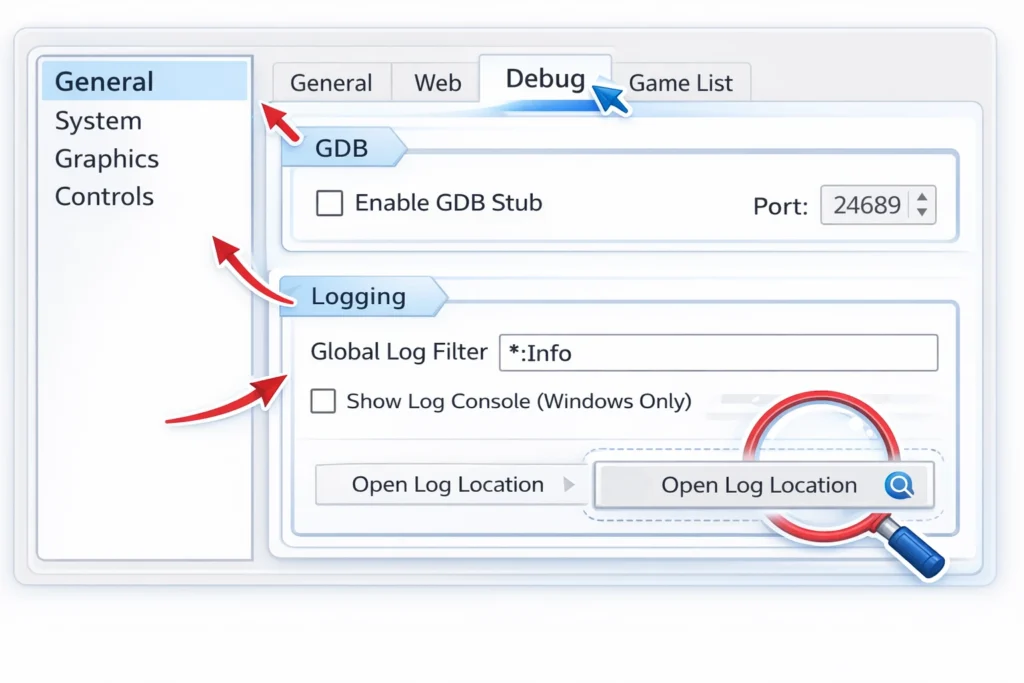
Before you start the game, take a second to check the log filter. It must be set to *:info. If it isn’t, the log might skip over details that actually matter.
To change it, open Yuzu and head into Emulation > Configure. From there, go to the General tab and turn on Debug. You’ll find the log filter under the Logging section, set it to *:info and close the settings.
After that, just run the game again and let the issue happen so it gets recorded properly.
How to Collect Yuzu Log Files
Step 1: Launch the Problem Game
Open the game that’s giving you trouble and run it like you normally would. Don’t stop it early. Let the crash, freeze, or error happen so Yuzu can actually record what goes wrong.
Step 2: Sharing Logs on Android
On Android, open Yuzu’s settings and look for the option to share debug logs. Tap it and just follow whatever prompts show up on the screen to export the file.
Step 3: Sharing Logs on Windows or Linux
On Windows or Linux, wait until the game crashes or locks up, then exit Yuzu fully. Once it’s closed, leave it that way. Opening it again can replace the log you actually need.
Step 4: Find the Log File Location
Windows 10 / 11
Click Windows + R, paste this into the box, and press Enter:
%appdata%\yuzu\log\Inside that folder, you should see a file called yuzu_log.txt.
Linux
Open a terminal and run:
echo $XDG_DATA_HOME If it returns a path, follow it and check for a yuzu/log folder. If nothing comes back, the logs are usually sitting in Yuzu’s default data directory inside your home folder.
Step 5: Compress Large Log Files
If the log ends up being larger than 8 MB, which happens a lot on Discord or forums. Just compress it before uploading.
Any archive tool works, whether that’s 7-Zip, WinRAR, or whatever you already have installed.
Step 6: Upload the Logs
After that, just upload the log file to wherever it was asked for, whether that’s a Discord server, a GitHub issue, a forum post, or a support page.
Once it’s uploaded, there’s nothing else you need to do.
Important Note
Yuzu is no longer an active project. This guide is mainly for reference purposes, demonstrating the process of log collection and usage during the time when problems were still monitored and examined.
Even so, having proper logs can still help with troubleshooting or community support discussions.