
Last Updated: February, 2026
Want to enjoy your preferred Nintendo Switch games on your computer with better graphics and no lag? The Yuzu Emulator is the answer. With this ultimate setup guide for 2026, you will learn everything about the installation, configuration, and Yuzu optimization on your PC for the most immersive gameplay ever.
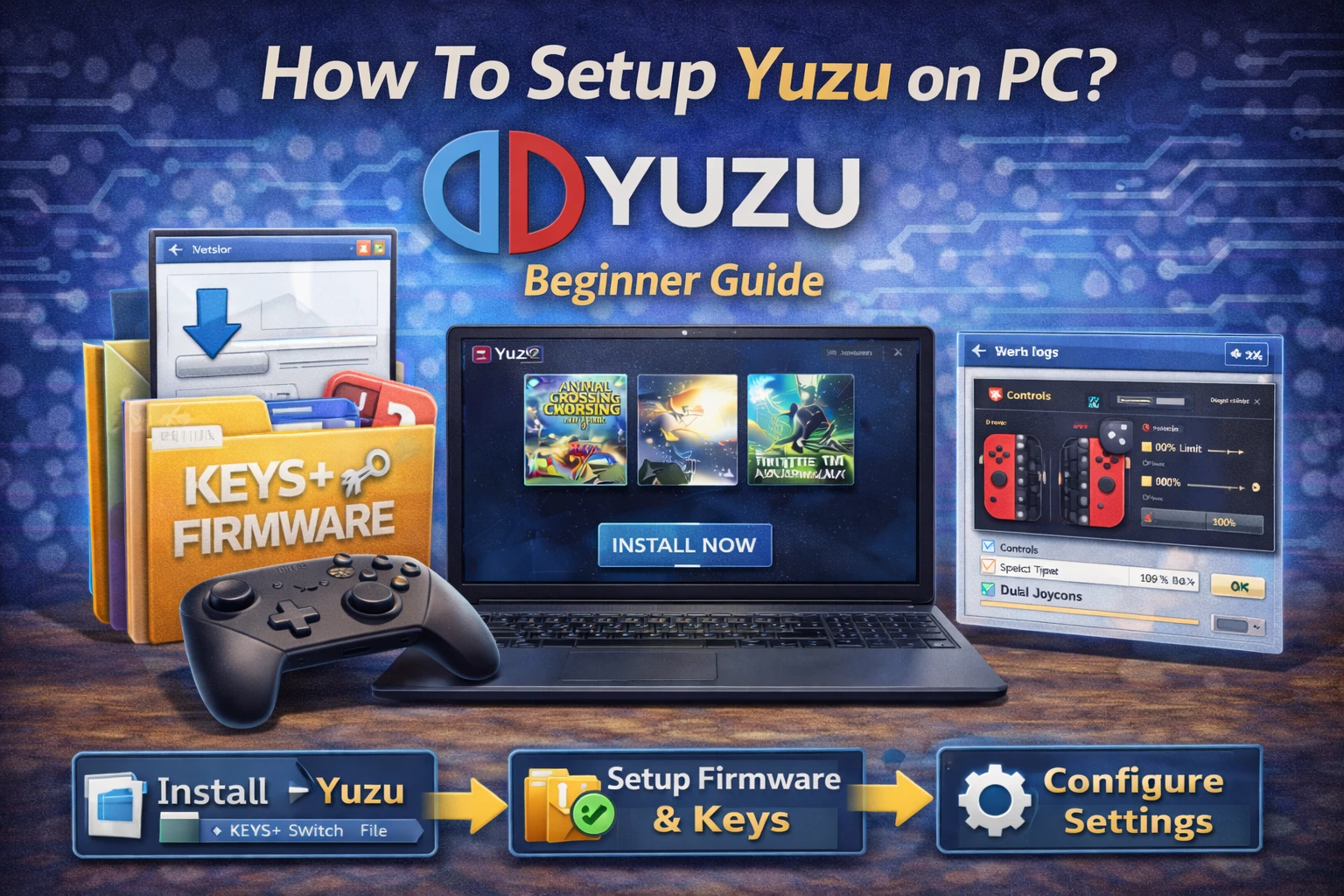
Table of Contents
ToggleWhat Is a Yuzu Emulator?
Yuzu is a strong, open-source Nintendo Switch emulator created by the same group that made Citra (the emulator for 3DS). Switch video games will be playable on your computer if you use this emulator as it mimics the complete Switch environment and you can legally use your game files.
With Yuzu, you can get:
- Higher resolutions than the original console
- Faster load times
- Advanced graphics options like Vulkan and OpenGL
- Cross-platform support for Windows, Linux, and Android
| Requirements | Minimum | Recommended |
|---|---|---|
| CPU | Intel Core i5 or AMD Ryzen 3 | Intel Core i7 or AMD Ryzen 5 (or higher) |
| GPU | NVIDIA GTX 1050 or AMD Radeon R9 280 | NVIDIA GTX 1070 or AMD Radeon RX 580 (or higher) |
| RAM | 8 GB | 16 GB |
| OS / Storage | Windows 10/11 (64-bit) or Linux | SSD for faster loading |
Learn more in our Yuzu system requirements guide.
Yuzu Emulator Setup Guide
Step 1: Download Yuzu Emulator
To ensure that you do not get the unsafe or outdated files, always download the Yuzu from the official website only.
- Navigate to the official Yuzu website and download the latest version of the emulator.
- Make a selection between the two:
- Stable Build: For reliable and great performance.
- Early Access Build: Latest features available but with a chance of bugs.
Unofficial or malicious third-party download sites should be strictly avoided as they are very risky.
Step 2: Install Necessary Dependencies
Before installing Yuzu, first check if the software dependencies are all on your system:
Windows Users:
- Get the most recent DirectX Runtime
- Get the Visual C++ Redistributable Packages (x64)
- Update GPU drivers (check NVIDIA or AMD official sites)
Linux Users:
- Get the most recent Vulkan drivers
- Check if dependencies libvulkan, SDL2, and qt5 are installed
Step 3: Install Yuzu Emulator on Your PC
For Windows:
- Execute the Yuzu installer that you have downloaded.
- Adhere to the installation instructions that appear on the screen.
- Select the folder where you want the installation to take place.
- After the installation, you can launch Yuzu either from your desktop or Start menu.
For Linux:
Choose one of the following methods according to your distribution:
sudo apt install yuzu
Or install using Flatpak/AppImage for easy setup:
flatpak install flathub org.yuzu_emu.yuzu
Run Yuzu after its installation and check to see if everything is operating perfectly.
Step 4: Setting Up Keys and Firmware
In order to simulate the Nintendo Switch environment, Yuzu needs the prod.keys and firmware files.
These have to be dumped in a legal manner from your Nintendo Switch console that you own.
- Go to C:\Users\\AppData\Roaming\yuzu\keys\
- Copy your prod.keys and title.keys files to this folder.
- In the same way, move your dumped firmware files to the nand/system/Contents/registered directory.
Do not under any circumstances ever get keys or firmware from the internet. Staying within the legal boundaries is to use files extracted from your personal console.
Step 5: Add and Manage Games in Yuzu
Yuzu supports several file types including, .NSP, .XCI, and .NCA.
- Start Yuzu Emulator
- Click on File then Load File
- Pick the game file which you have dumped
- The game will show up in the main list of Yuzu for you to access it easily
Another option is to add a customized game folder in the following way:
Emulation → Configure → General → Game Directories
Step 6: Configure Controller Settings
Yuzu is compatible with various controllers such as Xbox, PlayStation, and Nintendo Switch Pro.
- Navigate to Emulation → Configure → Controls
- Secondly, choose your input device that can be XInput, DirectInput, etc
- Thirdly, Tune the button mapping manually or use the auto-detect feature.
- Save your profile for future sessions
Step 7: Optimize Yuzu for Maximum Performance
Performance optimization is crucial for a smooth 60+ FPS experience.
Graphics Settings:
- API: Use Vulkan for faster responses.
- Resolution: Set Native to 720p or 2x depending on your GPU.
- VSync: You have to disable it to reduce input lag.
- Shader Cache: Enable shader cache to prevent stuttering.
System Settings:
- Enable Multicore CPU Emulation for better speed.
- Use Docked Mode for higher performance and visual quality.
- Close unnecessary background apps while gaming.
Step 8: Advanced Customization and Mods
Yuzu is a great emulator that provides advanced customization possibilities like mods and cheat options.
- To enable a mod, right-click on the game, go to Open Mod Data Location, and select it from the menu.
- Put your mod or cheat files in that folder.
- Then turn them in Properties → Add-ons → Enable Mod/Cheat turn them on.
One of the best places to find community-made mods is Yuzu’s official forums and GitHub repositories.
Step 9: Troubleshooting Common Issues
If you are having issues like your game crashing or lagging, or you have problems with the graphics:
- Switching between Vulkan and OpenGL renderers may be one of the options.
- Check if you have the latest GPU drivers installed.
- If your game is frequently interrupted by stuttering, then consider clearing the shader caches as one of the ways to fix it.
- Take a look at the Yuzu Compatibility List to find out if the game is supported.
In case of any help needed, you can go to Yuzu’s official Discord or community forums to find out the specific settings for your game.
Step 10: Keep Yuzu Updated
Yuzu’s new releases bring performance enhancements, bug fixes, and more games that can be played on the emulator.
By activating the auto-update in Yuzu or doing it manually, you will be receiving the newest version from the official site every few weeks.
Frequently Asked Questions (FAQs)
Is the Yuzu Emulator legal?
Yes! Yuzu is an open-source legal emulator, if you download it from a legal source. It must not be downloaded from pirated files.
Can I use Yuzu without a Nintendo Switch?
No! Pro keys and game files must be extracted from your own console.
Which API should I use, Vulkan or OpenGL?
Vulkan is best as it offers better performance. OpenGL can also give better working only on old GPU’s.
Can I play online using Yuzu?
Yuzu supports LDN multiplayer but not official Nintendo online services.
Why does my game stutter or lag?
Attempt to clear the shader cache, reduce resolution scaling, or try a different rendering backend.
Final Thoughts
Installing Yuzu on the personal computer allows one to enjoy the premium gaming of the Nintendo Switch on the PC.
With this guide, it will be possible to install, configure, and carry out optimizations on Yuzu for playing the best Switch games with high-quality video, maximum speed, and individually customized controls.
It is highly recommended to always keep your Yuzu updated and to routinely check its settings because you will be able to find out that PC emulation is very close to the actual console experience!