
Yuzu is perfectly usable with a keyboard, but it doesn’t take long to notice how much better games feel with a controller. Movement is smoother, button layouts make more sense, and long sessions are far more comfortable. For anything that relies on analog input or fast reactions, a controller is almost essential.
Yuzu works with most common controllers like Xbox, PlayStation, and many third-party pads. But it won’t always pick them up automatically. The first setup usually needs a bit of manual work. Once that’s done, though, things are mostly seamless.
This covers connecting controllers on both Windows and Android, setting up button mapping, using profiles, and dealing with the usual issues people run into. Wired and Bluetooth controllers both work, and Yuzu supports up to eight players at once.
Why a controller is worth using
Compared to keyboard controls, a proper gamepad gives you better ergonomics, real analog stick control, and layouts that match how Switch games are designed. Motion-heavy titles, action games, and anything that expects precise stick movement all benefit immediately. If you want something close to the actual Switch experience, a controller is the way to go.
Controllers that work with Yuzu
Most modern controllers are supported as long as your system can see them. That includes Xbox One and Series controllers, DualShock 4, DualSense, and generic USB or Bluetooth gamepads. If your OS recognizes the controller, Yuzu almost always can too.
Connecting the controller before launching Yuzu
Before touching Yuzu’s settings, make sure the controller is properly connected to your device.
A quick checklist helps avoid problems later:
- Charge the controller
- Put it into pairing mode if using Bluetooth
- Close apps that might hijack input, like Steam, DS4Windows, or similar tools
Windows 10 / 11 connection
Bluetooth:
Open Settings, go to Bluetooth & Devices, turn Bluetooth on, then add a new device. Choose Bluetooth and select your controller from the list. Once paired, Windows will confirm it’s ready.
USB cable:
Just plug the controller into your PC using a USB cable. Power it on if needed and wait a moment, windows usually detects it automatically. A small notification or device icon confirms the connection.
Android connection
Yuzu on Android supports external controllers and makes mobile play much more enjoyable.
Bluetooth:
Enable Bluetooth in system settings, put the controller into pairing mode, then select it from the available devices list. Once connected, it’s ready to use.
USB:
If Bluetooth isn’t an option, connect the controller directly with a cable. Most Android phones detect it instantly without extra setup.
Setting up a controller in Yuzu on Windows
On Windows, after the controller is connected, launch Yuzu.
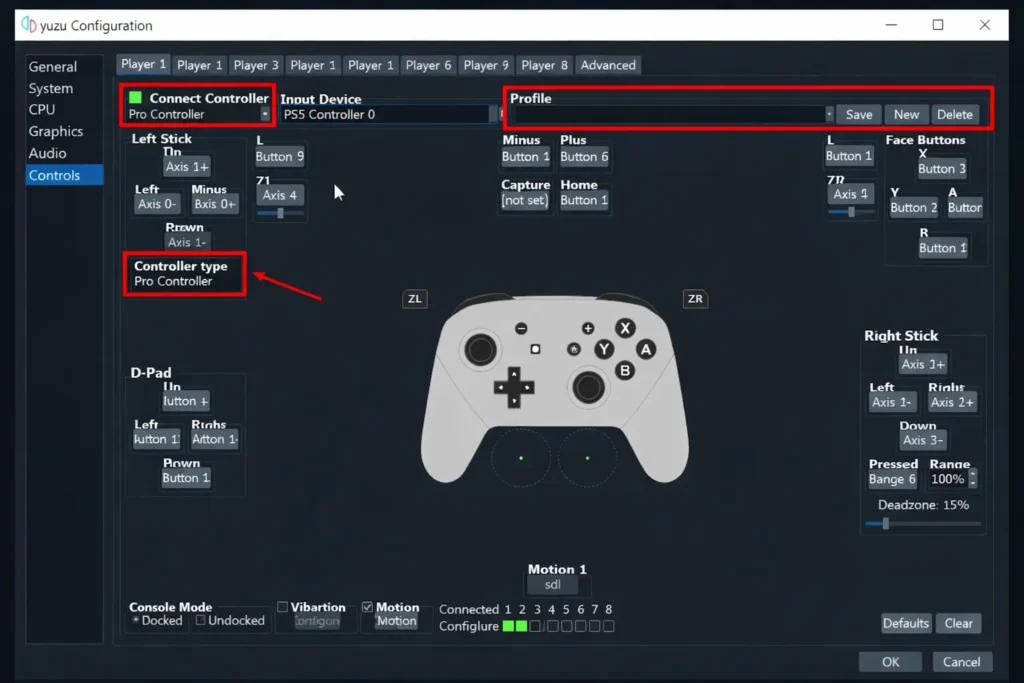
Go to Emulation → Configure → Controls. This is where most of the important settings live. Set the controller type to Pro Controller, then choose your connected gamepad under Input Device. Move the sticks or press a button to confirm Yuzu is receiving input.
You can map buttons manually by clicking each field and pressing the corresponding button on the controller. It’s straightforward, just a bit tedious the first time.
Once everything feels right, save it as a profile. Click New, give the profile a name, and confirm. Yuzu For Windows will automatically load that profile whenever the controller is connected, which saves a lot of time later.
Controller setup on Android
On Android, the layout is simpler but works the same way.
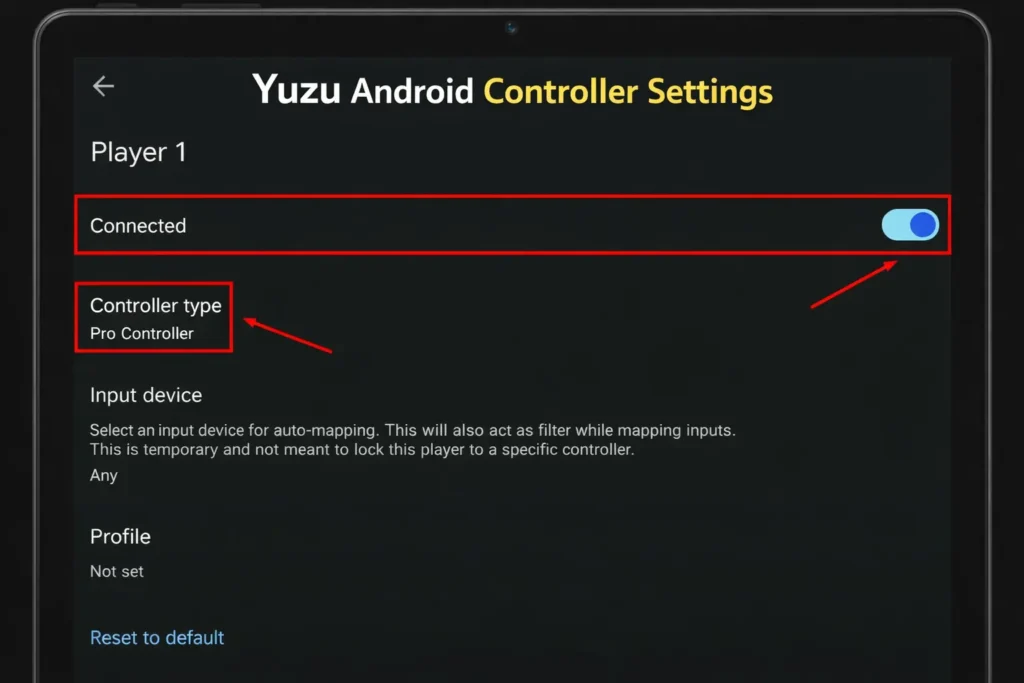
Open Yuzu, head into Settings, then Controls. Pick a player slot, enable the connected toggle, and select your controller under Input Device. From there, adjust button mappings and tweak vibration or sensitivity if needed.
After that, the controller is ready to use.
Using multiple controllers
Yuzu supports up to eight controllers at once. Each player gets their own slot, and you can assign separate profiles if different people prefer different layouts. This works well for local multiplayer and party games.
Common controller problems and fixes
If Yuzu doesn’t detect your controller, double-check that it’s connected at the system level. Try reconnecting it, then restart Yuzu. Connecting the controller after Yuzu is already open sometimes causes issues.
If profiles aren’t saving, this was a known problem in older builds. Updating Yuzu usually fixes it. Running Yuzu with proper permissions can also help.
If the controller doesn’t reconnect automatically, it usually means no profile was created. Save a profile once, then reopen Yuzu after connecting the controller.
Final thoughts
Once the controller is set up properly, Yuzu feels much closer to real hardware on both Windows and Android. Profiles, flexible mapping, and solid multi-controller support make it easy to tailor everything to your preferences.
Spending a few minutes on controller setup pays off quickly. If you plan to play Switch games seriously on Yuzu, it’s time well spent.